
Enter and process orders
Create a draft order
From Orders → Order List, choose New Order. You can enter several items grouped by customer or create one order at a time.
- Enter a customer nickname. Select an existing customer or type a new nickname.
- Select or enter product details. Product, buyer, and supplier records are optional.
- Enter a main specification and quantity for each line. Customer service reviews and enters the selling price. Supply cost is optional and requires quote-reading access.
- Check the customer, product, image, specification, quantity, and price snapshots.
- Save the draft order. Grouped entry can first be saved as a resumable cart. Saving a cart and creating draft orders are separate actions.
Order entry can search published products by image. If no candidate fits, keep the uploaded image and enter the order manually. A search image does not automatically become the order product image.
Review and confirm
Drafts can be edited. Before confirming, review the status, quantities, main specifications, and prices. Confirmation records who confirmed the order and when.
Available status flow:
Draft → Confirmed → Shipped → Completed
Draft and confirmed orders can also be cancelled. Orders keep text snapshots of their customer, product, and price details, so later edits to product or customer records do not change historical orders.
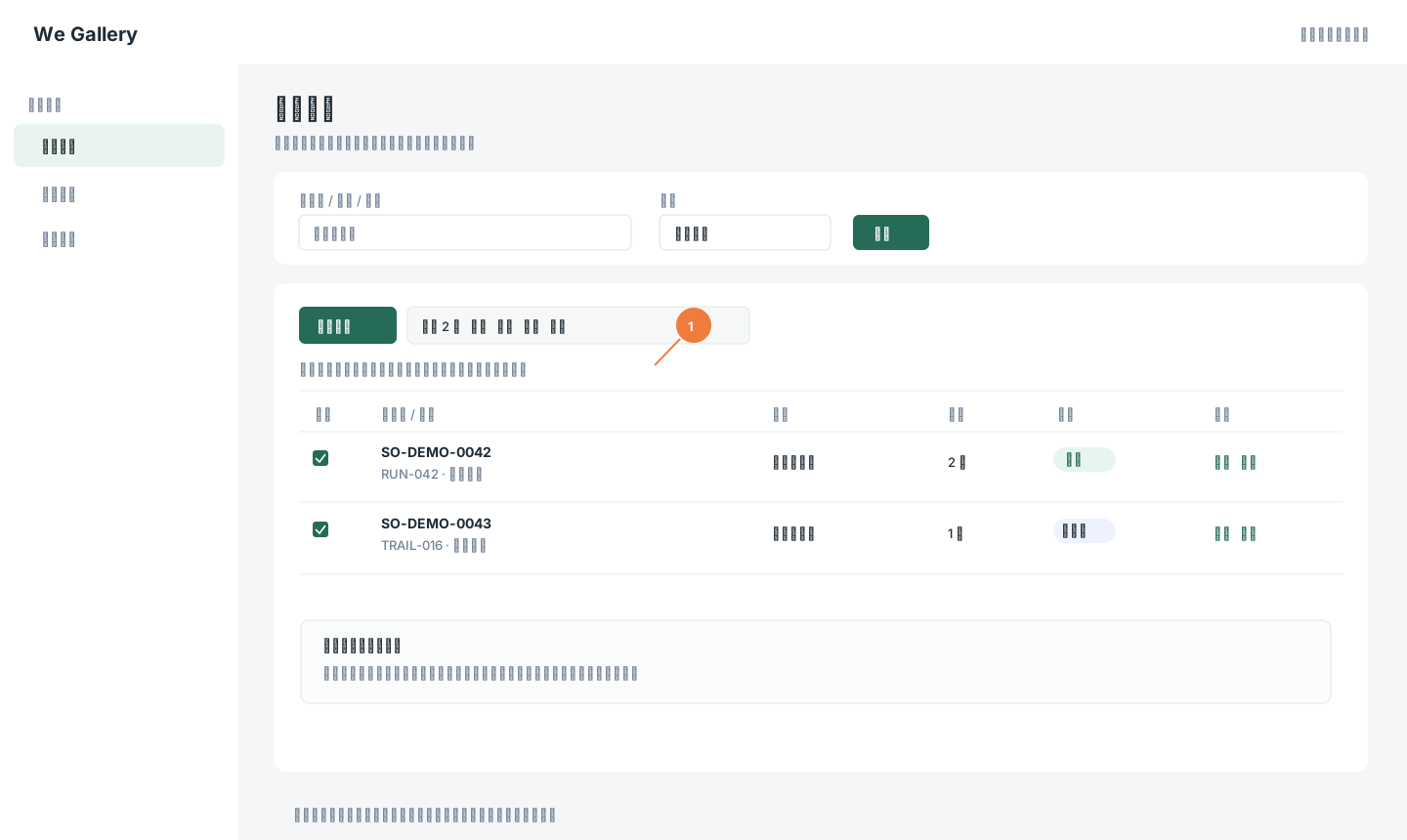
The illustration shows the order selection bar with fictional orders. No real customer data is used. Click the image to zoom in.
Find an order
Filter the order list by order number, product name or code, customer, buyer, supplier, status, date, or the staff member who created it. Open an order to review its saved snapshot.
Outside the current scope
Order entry does not process payments or accept visitor self-service orders. Purchasing, inventory, and shipment tracking are not available.