
Create a share link
Open Sharing → Share Links and choose Add. The link name is for staff reference and is not shown directly to visitors.
Choose the product scope
Each link uses one scope:
- Entire store shows all eligible published products.
- Multiple categories lets you select several categories. Each selected category includes its descendants.
- Multiple products lets you select one or more individual products.
These three scopes are mutually exclusive. Create separate links when different audiences need different product sets.
Set prices and access
- Choose the price types visitors may see. New links expose no prices by default.
- Optionally set a password, validity period, and active state.
- Choose whether this link displays contact information.
- Set a link-specific notice, banner group, navigation group, or contact overrides if needed.
- Save the link, copy its visitor address, and check the scope and prices as a visitor.
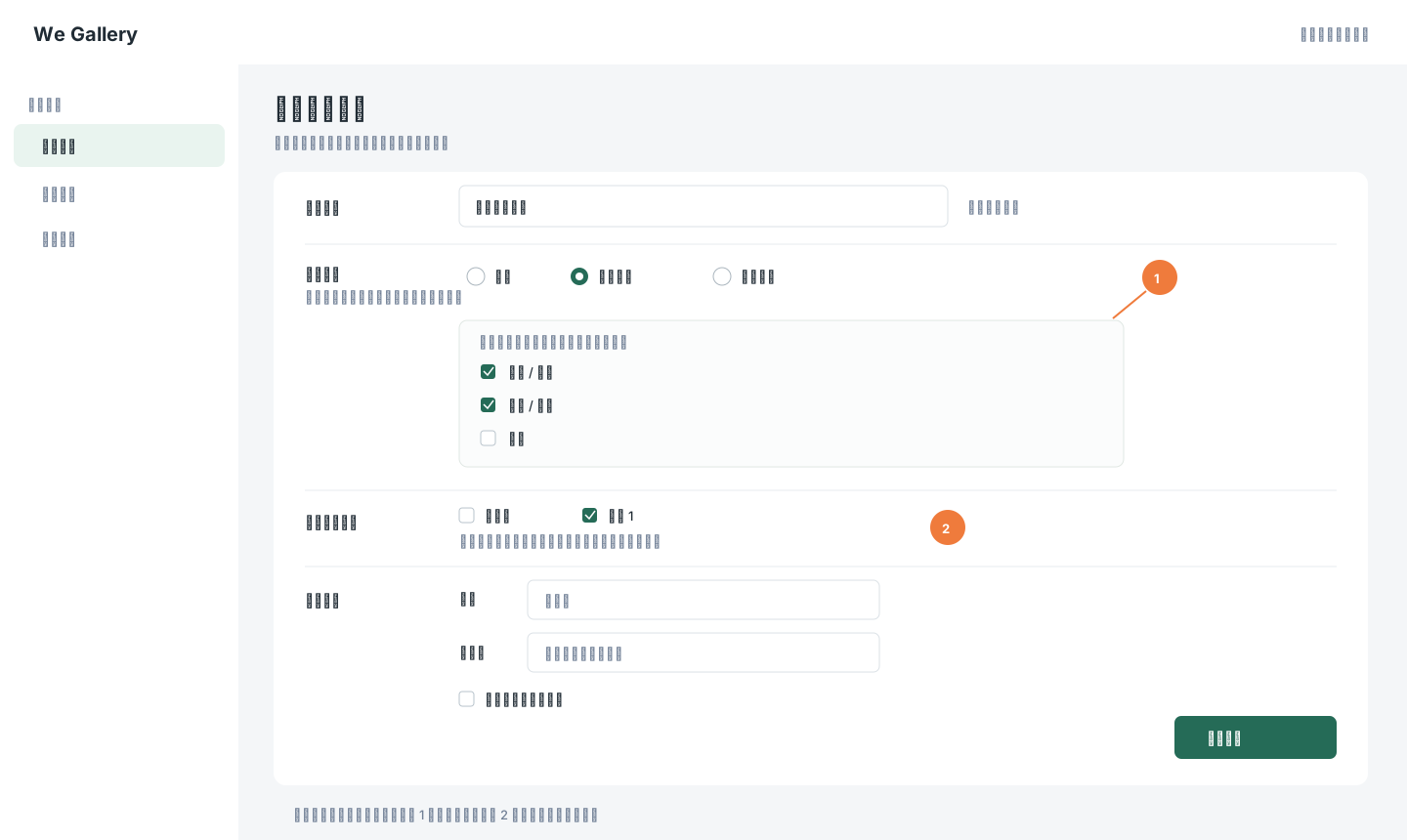
The illustration uses synthetic data. 1 marks the mutually exclusive scope, and 2 marks price visibility. Click the image to zoom in.
What visitors can see
- Only published products inside the chosen scope and their promotional content are shown.
- Supplier records and supply costs remain internal.
- Visitors cannot switch price types. Prices are hidden when the link does not expose a populated price type.
- A password protects the product catalog until the visitor unlocks the link. Expired or disabled links cannot be used.
- Password protection applies to the catalog content; image files themselves are not access credentials. Do not upload sensitive information as product images.
Before sharing: Check the visitor view for scope, prices, contact information, notice, and expiry. The staff-only link name does not replace the visitor notice.