
Bulk actions
Filter the Orders → Order List page, establish a selection, and start a bulk action from the selection bar. Orders are processed individually, with success, skipped, or failed results recorded for each item.
Move orders through statuses
- Confirm processes drafts.
- Ship processes confirmed orders.
- Complete processes shipped orders.
- Cancel processes draft or confirmed orders.
Review the filters and selected range before submitting. If an order has changed status or no longer meets the action's requirements, it is skipped. One failed order does not stop the others. Open the task result to inspect each order.
Adjust draft prices in bulk
Only draft order selling prices are adjusted. Set one price, add or subtract an amount per item, or adjust by a percentage. Review the preview before submitting. Confirmed orders and supply costs are not changed.
Print labels or preview a supplier report
The order selection bar can open label printing or a supplier report preview. Labels include confirmed orders only. Supplier reports summarize orders still confirmed and put lines missing a supplier or cost under Information Needed.
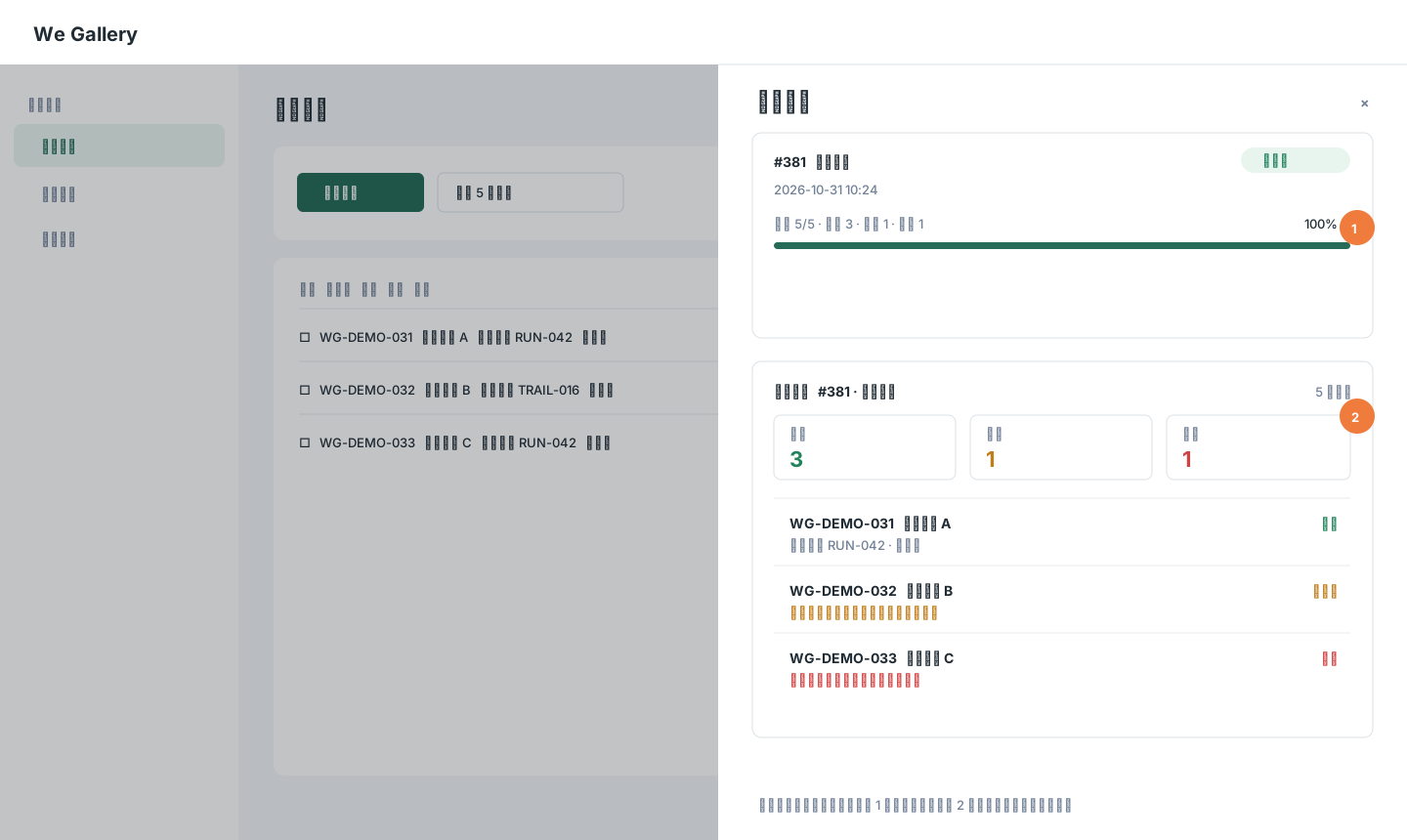
The task uses fictional orders. Callout 1 shows task progress; callout 2 shows per-order results. Click the image to zoom in.
Review asynchronous task results: Some bulk actions run asynchronously. Check per-order success, skipped, and failure details instead of assuming every selected order finished successfully.