
Manage products
Open Catalog → Products. Search by product name or code and filter by category or status.
Create or edit a product
- Choose Add Product or open an existing product.
- Enter a product code, unique across the catalog, a name, and a description.
- Add a main image and any gallery images.
- Assign one or more categories and, if useful, tags.
- Add one or more material versions and fill in the selling prices that your shop uses.
- Save as a draft, review the visitor experience, and then publish.
Product specifications are maintained as a specification name with multiple values. They do not automatically create SKU combinations. Customer service enters the main order specification separately.
Publish or unpublish
Drafts do not appear in visitor galleries. First publication or republishing requires a main image and at least one active material version. Ordinary edits do not change the last publication time.
Bulk unpublish
Select products in the list and choose Publish Selected or Unpublish Selected. Publishing still requires each product to have a main image and a valid active material version. Check the selection and filters before confirming. Unpublished products disappear from visitor galleries, but existing order snapshots remain intact.
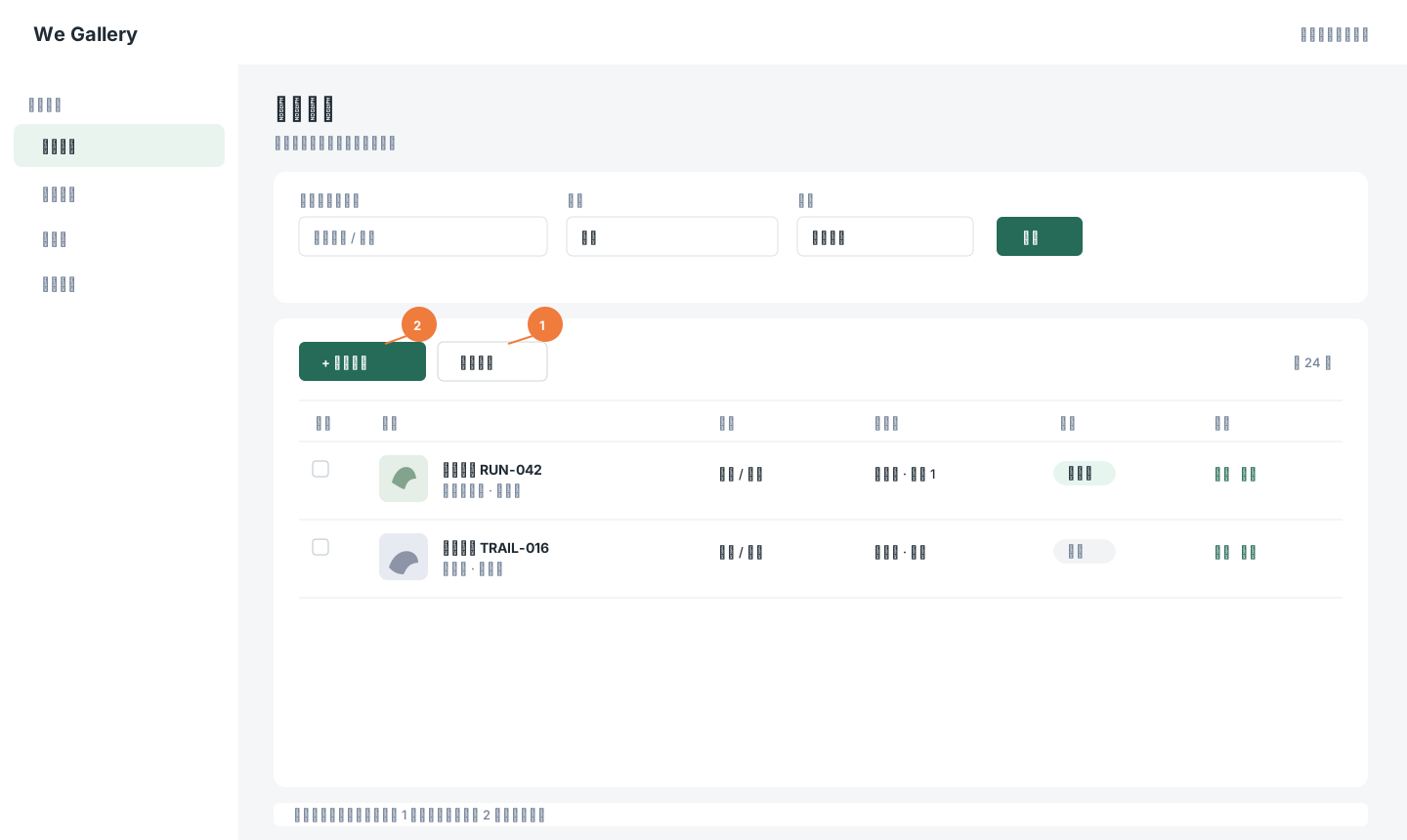
Illustration: 1 marks the bulk action and 2 marks Add Product. All rows use synthetic data. Click the image to zoom in.
Image search
The product list can search for similar products from an uploaded image. Results are candidates for manual review, not a SKU-level accuracy guarantee. Order entry and visitor galleries also have image search within their own product scopes.